
JSON to PDF Converter→guide
How to Convert a JSON File to PDF (Free, No Upload)
2026-07-23 · 8 min read
You have a .json file — an API response, a database export, a tax download — and you need it as a PDF: something you can email, print, or attach to a ticket without the person on the other end needing to know what JSON is. This guide walks through the whole conversion in three steps using the free JSON to PDF converter on this site. There is no sign-up, no watermark and no daily quota — and because the conversion runs entirely in your browser, your file is never uploaded anywhere.
Why Convert JSON to PDF?
JSON is built for machines; PDF is built for people. The moment your data has to leave a terminal and survive in the human world — inboxes, meetings, printers, archives — converting JSON to PDF starts making sense:
- Sharing with non-technical people. A client or manager who asked for “the data” wants a document, not a wall of braces. A typeset PDF with real tables looks deliberate, and nobody can accidentally edit the numbers on the way.
- Surviving email and chat. A .json attachment gets mangled, blocked or “helpfully” reformatted by mail clients and chat apps. A PDF opens identically on every device.
- Archiving and auditing. A paginated PDF with headers and page numbers is searchable, printable and easy to attach to an audit trail or a support ticket.
- Printing. Some reviews are simply better on paper — a syntax-highlighted, paginated printout of a config reads like it does in your editor.
Step 1: Open the Converter and Add Your JSON
Open the JSON to PDF converter — it loads in a couple of seconds and, once loaded, even works offline. You have three ways to get your data in:
- Paste it. Copy the JSON from wherever it lives — a terminal, an API client like Postman, a log viewer — and paste it straight into the editor.
- Drop the file. Drag your .json or .ndjson file onto the editor. On a phone, use the file picker instead.
- Try the sample first. If you just want to see what the output looks like before trusting it with your own data, load the built-in sample — a preview appears immediately.
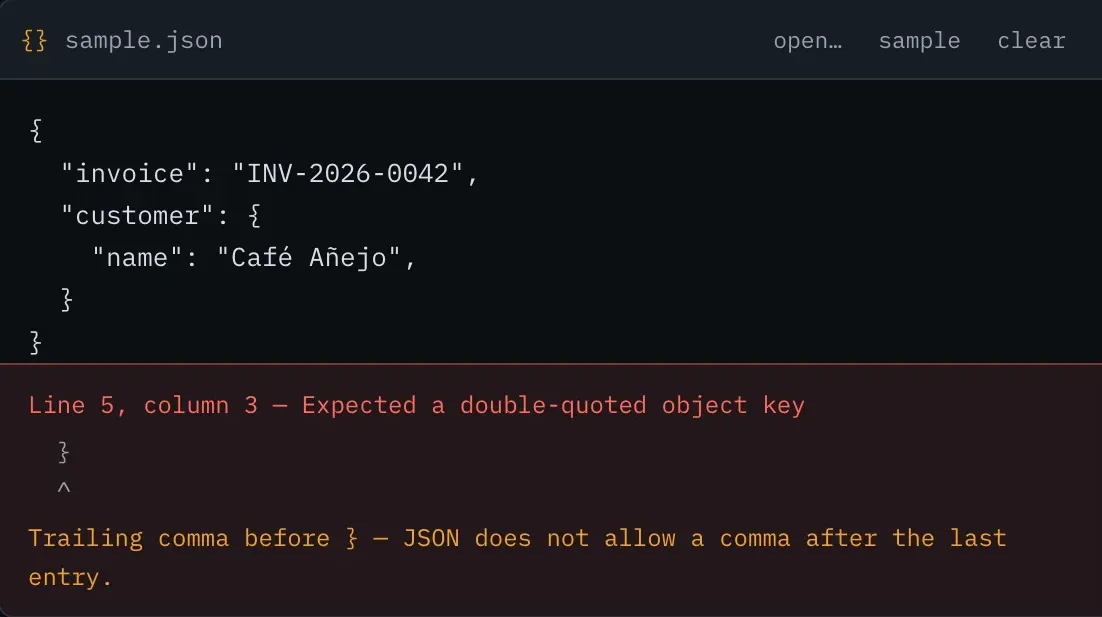
Two things worth knowing at this step. First, if your JSON has a syntax error, you won’t get a silent failure or a cryptic “unexpected token” — the converter points at the exact line and column and tells you the likely cause in plain English: a trailing comma, single quotes instead of double, an unquoted key, or Python-style True/None literals that aren’t valid JSON. Second, if your file is JSON Lines (one JSON value per line, the format API logs and database exports often use), that’s detected automatically and treated as an array of records — no pre-processing needed.
Step 2: Pick a Layout — Code, Table or Tree
This is the step most JSON to PDF converters don’t have: they dump your file as plain text and call it done. Here, the same JSON can become three very different documents, and picking the right one is the difference between a PDF people read and a PDF people scroll past.
Code — for configs and API responses
Your JSON pretty-printed and syntax-highlighted in a monospaced font, with indent guides, paginated with a header and page numbers. It reads like your editor, on paper. Pick this when the structure itself is what you’re reviewing or archiving.
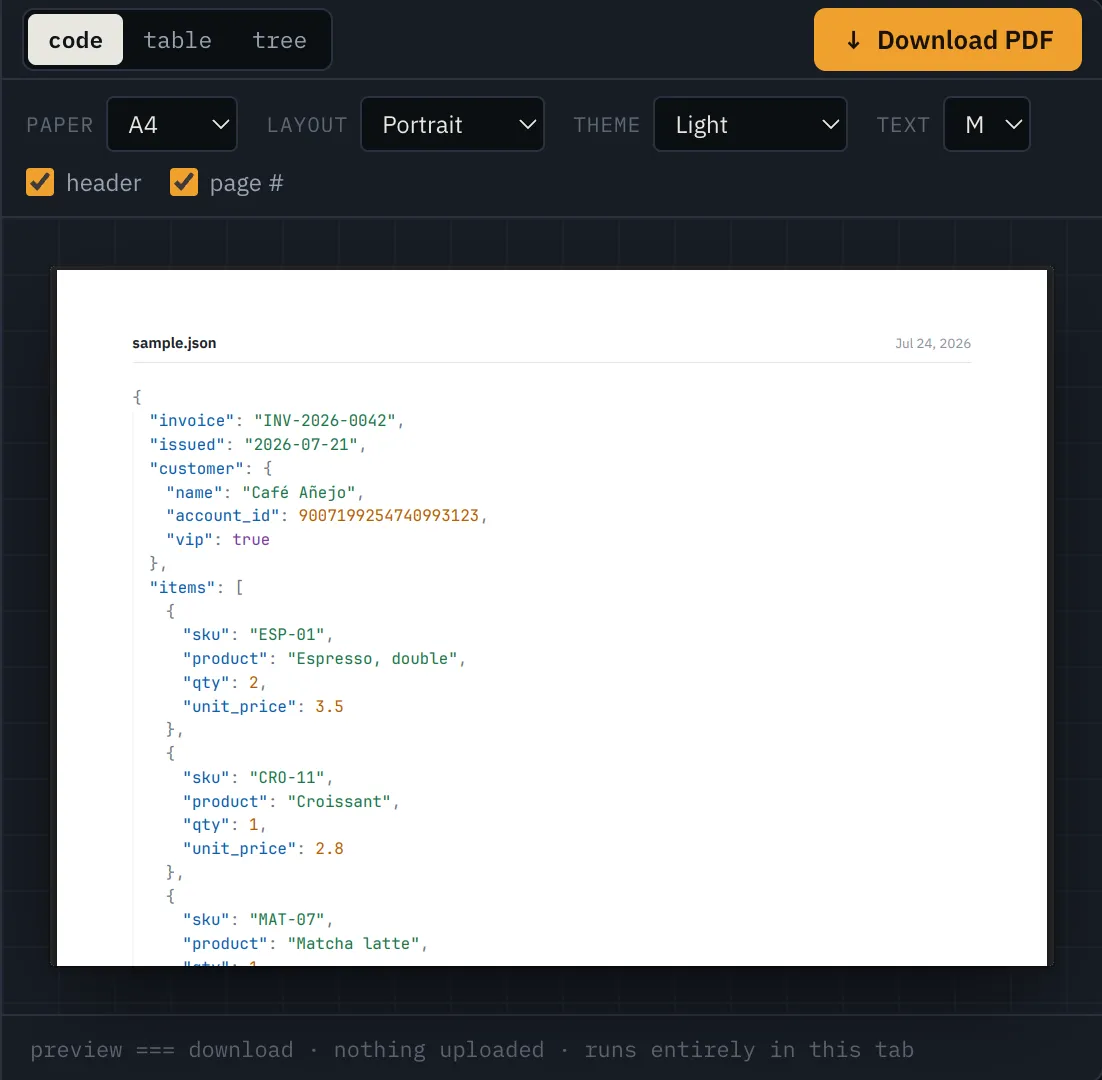
Table — for exports and records
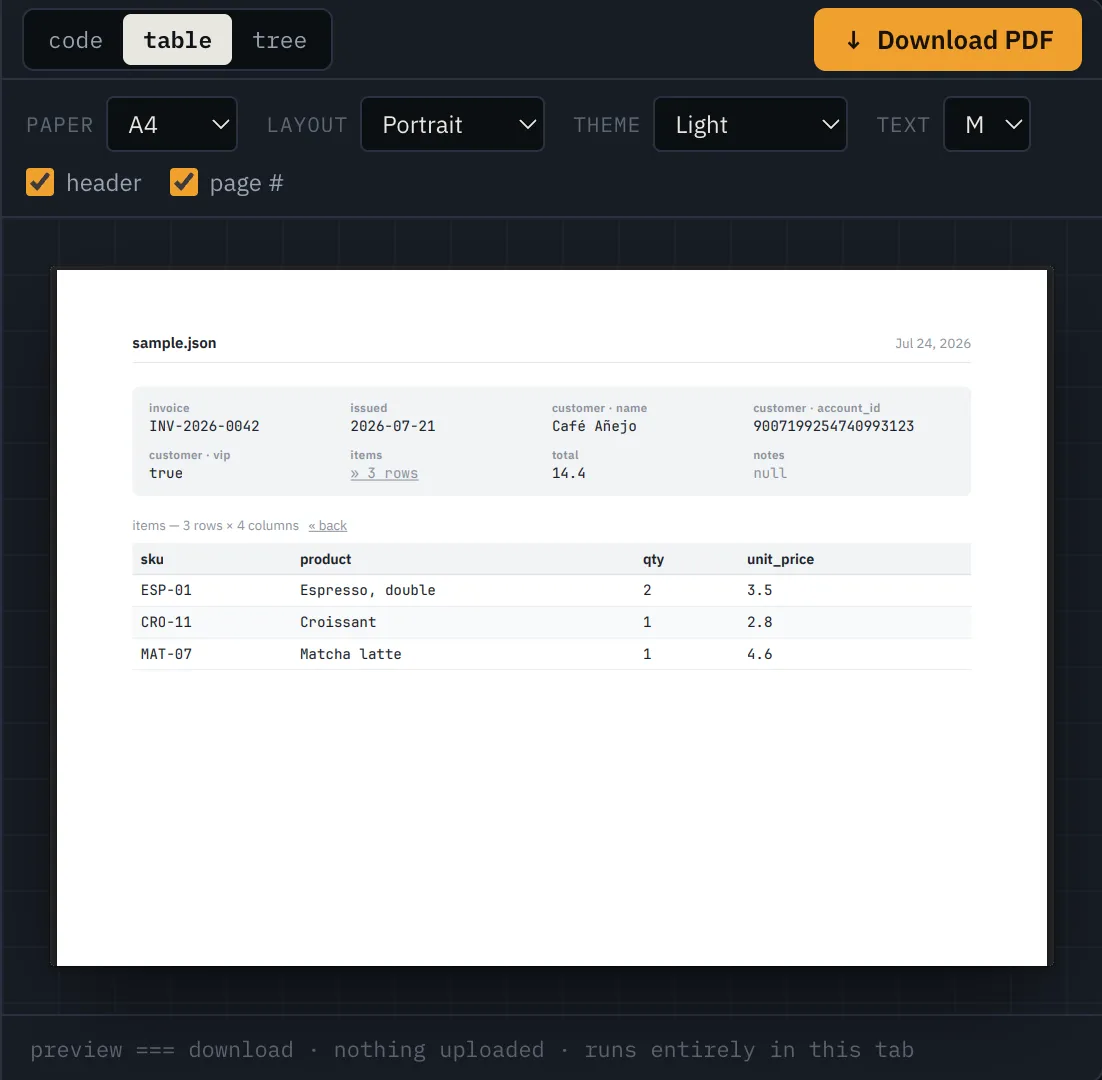
Every array of objects in your file is detected automatically — anywhere in the structure, nested ones included — and becomes a real table: columns from your keys in their original order, the header repeated on every page, alternating shaded rows that never split across a page break. Nested arrays get their own sub-tables with jump links from the parent row. If your JSON is a list of orders, users, transactions or invoice lines, this is almost certainly the layout you want — it turns a JSON file into a PDF that looks like a report.
Tree — for structures you didn’t write
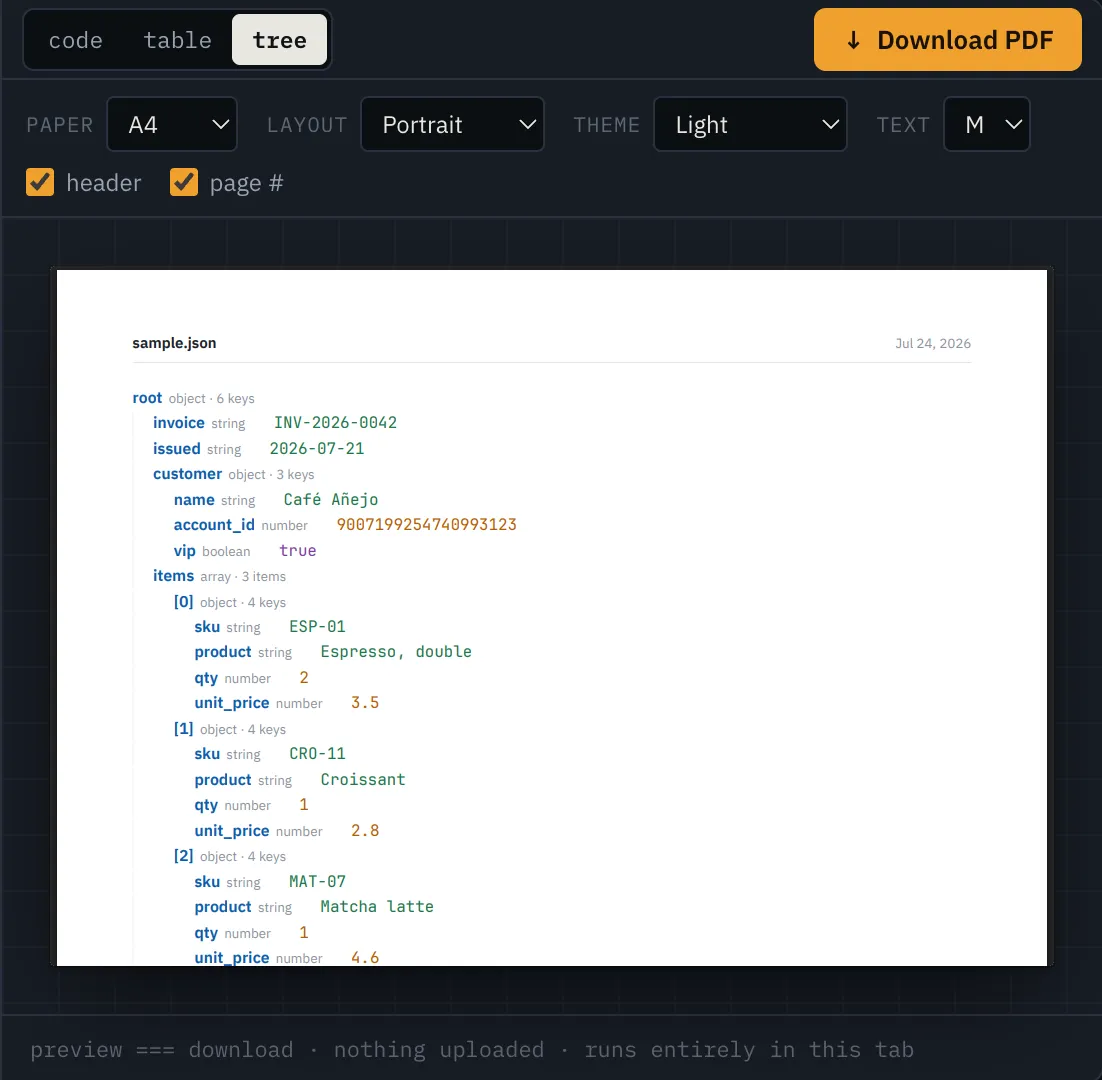
An indented outline with type badges, showing object and array sizes at a glance. Pick this when you’ve been handed an unfamiliar file and first need to understand what’s inside before deciding what to do with it.
Rule of thumb: list of similar things → Table; one complex thing → Code; unknown thing → Tree. You can switch between all three freely and watch the preview update, so there’s no wrong choice.
Step 3: Adjust Paper Settings and Download
Before downloading, tune the document to how it will actually be used:
- Paper size. A4 for most of the world, Letter for the US, Legal for long-form documents.
- Orientation. Portrait for code and trees; switch to landscape if your Table layout has many columns — wide tables get room to breathe.
- Theme. Light for everyday documents, print-friendly black-and-white to save toner, dark if the PDF will be read on screen.
The preview pane shows the actual generated PDF — not a mock that “may differ from the final rendering”. What you see is byte-for-byte what you download, so there are no surprises after the fact. One exception to the live preview: above roughly 1.5 MB of JSON, re-rendering on every keystroke would make the page sluggish, so the preview pauses and you generate the document with one click instead.
Click Download PDF and you’re done. The file comes out with your filename in the header and page numbers in the footer — ready to email, print or archive as-is.
Why “No Upload” Matters When Converting JSON to PDF
Most online converters work by uploading your file to a server, converting it there, and handing you back a download. That’s fine for a restaurant menu. It’s less fine when you stop to think what usually lives inside a JSON file: API responses with customer records, database dumps, invoices, tax exports from government portals, config files with endpoints and occasionally credentials. Once uploaded, that data sits on someone else’s disk, under someone else’s retention policy — and the sketchier converter sites are exactly the ones whose policies you’ve never read.
This converter takes the other route: parsing and PDF generation both happen locally, in this browser tab, using JavaScript. Your file never leaves your device — after the page has loaded it even works offline. You don’t have to take that on faith: open your browser’s developer tools, watch the network tab, and convert a file. No upload happens. (The one exception is emoji, which load as small images from the web.)
There’s a practical bonus, too: no upload means no upload wait. A 5 MB JSON file converts in a second or two locally, instead of making a round trip through a queue on someone’s server.
Common JSON to PDF Problems — and How to Avoid Them
Long ID numbers come out wrong
Most converters run your file through JavaScript’s JSON.parse, which stores every number as a 64-bit float. Anything past 15–16 digits gets silently rounded: an ID like 9007199254740993123 becomes 9007199254740992000. If your JSON contains database IDs, snowflake IDs or long account numbers, check them in the output. This converter keeps every number exactly as written in your file and prints that.
Chinese, Japanese, Korean or emoji turn into boxes
The default fonts in most PDF libraries cover Latin text only, so non-Latin characters render as empty squares. When this converter detects non-Latin text, it embeds a font that covers all these scripts into the PDF, so Chinese, Japanese, Korean, Cyrillic and Greek print as real characters, and emoji print as images.
The file is too large to convert
Browser-based conversion tops out around 20 MB because everything happens in your device’s memory. If you’re above that, check whether the file is JSON Lines and split it by line count, or export a narrower slice from the source system — you rarely need every field of every record on paper.
The preview didn’t match the downloaded file
A common complaint with other tools — one competitor states on its own page that the preview “may differ from the final rendering”. Here the preview pane renders the actual PDF file, so the download is the same bytes you already looked at.
Frequently Asked Questions
Can I convert JSON to PDF with iLovePDF or Adobe Acrobat?
No — as of mid-2026, neither iLovePDF nor Adobe Acrobat lists JSON as a supported input format. Their converters handle Office documents and images, but a .json file gets rejected at the upload step. You need a converter built specifically for JSON, like the one on this site.
Can I convert a JSON file to PDF on my phone?
Yes. The converter is a plain web page, so it runs in any modern mobile browser — Safari on iPhone, Chrome on Android. Paste the JSON or pick the file from your files app, choose a layout, and download the PDF. The desktop version gives you more room for tuning paper settings, but the conversion itself works exactly the same on a phone.
What is the largest JSON file I can convert?
About 20 MB, because everything runs in your browser's memory rather than on a server. Above roughly 1.5 MB the live preview pauses to keep the page responsive, and you generate the PDF with one click instead. If your file is larger than 20 MB, split it into chunks first — or check whether it is actually JSON Lines, in which case each line converts as a separate record anyway.
Does it work with JSON Lines (NDJSON) files?
Yes. JSON Lines — the format where every line is a complete JSON value, common in API logs, database exports and analytics events — is detected automatically. The whole file is treated as an array of records, so the Table layout will turn it into one long table with repeated headers on every page.
Convert Your JSON File Now
That’s the whole process — three steps, no account, no watermark, and your data stays on your own device from start to finish.